
If You See This on Your Phone, Turn It Off Now
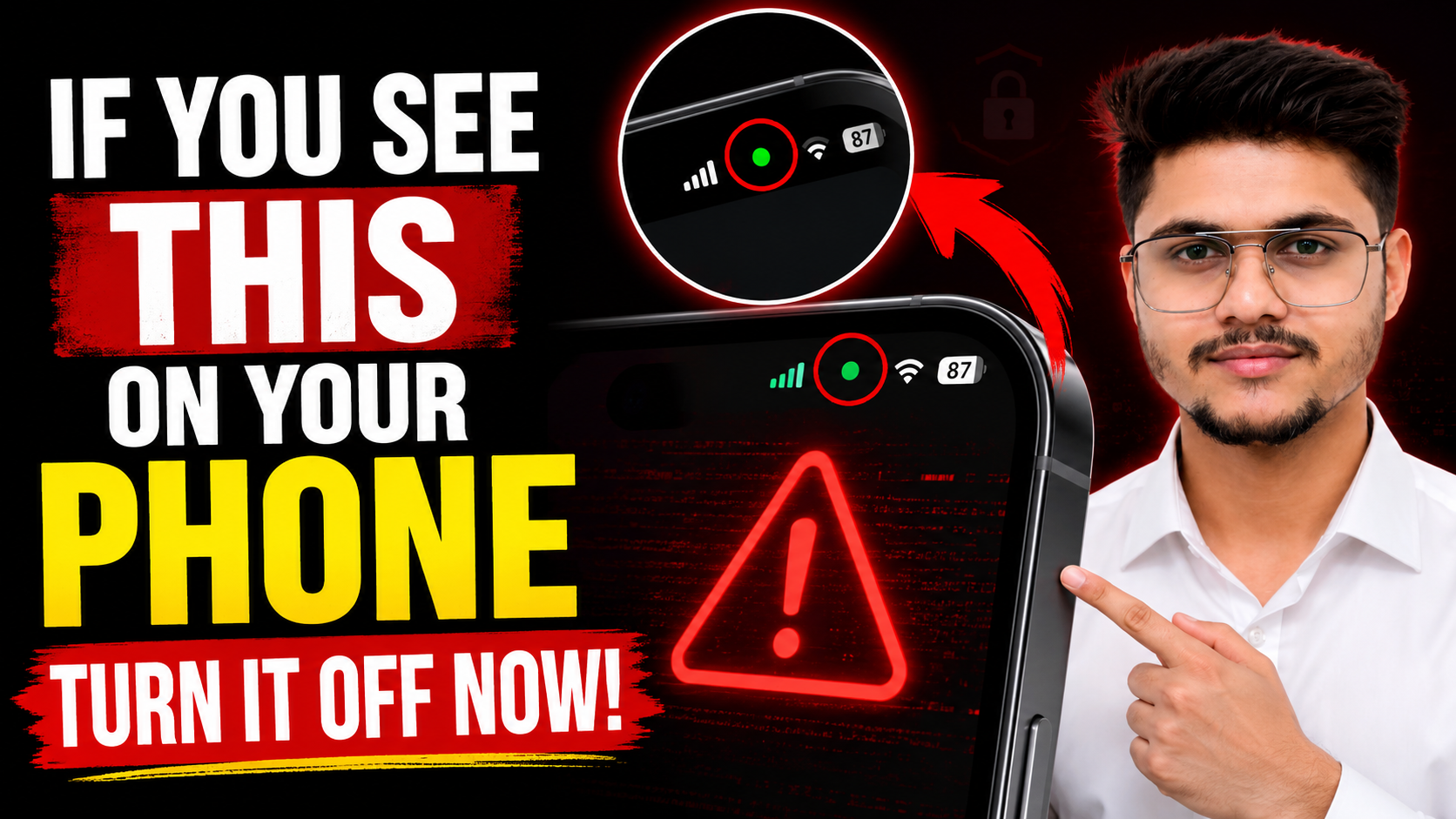
The Green Dot on Your Phone Could Be Warning You
Most people unlock their phone dozens of times a day without noticing a tiny dot sitting in the top corner of the screen. That dot is one of the most important privacy signals your phone gives you, and most people have no idea what it means.
Here is everything you need to know about the green dot, why it appears, what it is actually telling you, and what to do when it shows up at the wrong time.
What Is the Green Dot on Your Phone?
The green dot is a real-time privacy indicator built into both iPhone and Android. It appears in the top corner of your screen whenever an app is actively using your camera or microphone. Apple introduced this feature with iOS 14 in September 2020. Android added the same capability with Android 12, covering Samsung, Google Pixel, OnePlus, and virtually all modern Android devices.
Think of it like a warning light on a car dashboard. It is not there to panic you. It is there to put you in control.
On iPhone, the distinction matters: an orange dot means an app is using your microphone. A green dot means your camera, or your camera and microphone together, are being accessed. You can swipe down from the top right to see which app is responsible.
When the Green Dot Is Completely Normal
Seeing the green dot during obvious activities is expected and harmless. You should see it when you are on a video call, recording a voice message, taking a photo, or using a QR code scanner.
The dot is simply doing its job. An app you opened and are actively using is accessing the hardware it needs to function. That is normal behavior.
When the Green Dot Should Concern You
The green dot becomes a red flag in specific situations that most people miss because they are not watching for them.
It appears when you are not using any app
If the green dot lights up while your phone is sitting on a table, locked, or while you are on the home screen, something is accessing your camera or microphone in the background without an obvious reason. That is worth investigating immediately.
It appears in an app that has no reason to use the camera or mic
A flashlight app, a wallpaper app, a casual game, or a calculator asking for camera or microphone access is a serious warning sign. McAfee’s security research documents how invasive apps disguise themselves as everyday utilities and then silently access sensors they have no legitimate need for.
It appears repeatedly from the same app you rarely open
If a social media app or a utility you downloaded months ago keeps triggering the green dot even when you are not using it, that app is running background processes that access your microphone or camera without your active knowledge.
Certo’s 2025 Mobile Security Roundup, which analyzed nearly 600,000 device scans, found that almost 7% of devices showed medium or high security threats, many involving spy apps capable of tracking location or silently recording through the microphone and camera.
The Limitation Nobody Talks About
Certo Software’s security research highlights a critical point that most coverage skips: the green and orange dots are reliable indicators for everyday apps, but sophisticated commercial spyware can circumvent them entirely. Government-grade surveillance tools and advanced stalkerware are designed to operate below the level that these visual indicators can detect.
In the first half of 2025, Kaspersky recorded a 29% increase in attacks against Android users compared to the same period in 2024, with new Trojan families specifically targeting mobile devices.
The green dot is a useful first line of awareness, not a complete security guarantee.
How to Check Which App Is Triggering the Green Dot
On iPhone
- Swipe down from the top-right corner to open Control Center. The app currently using the camera or microphone is listed at the top.
- For a full history, go to Settings, then Privacy and Security, then App Privacy Report. This shows every app that accessed your camera, microphone, location, and more, with timestamps.
On Android
- Tap the green dot when it appears. A chip will expand showing the name of the app currently accessing the hardware.
- Go to Settings, then Privacy, then Privacy Dashboard to see a timeline of which apps accessed your camera, microphone, and location over the past 24 hours.
What to Do If the Green Dot Appears Unexpectedly
Step 1: Identify the app
Use the steps above to find exactly which app is responsible. Do not guess.
Step 2: Revoke its permissions
- iPhone: Settings, Privacy and Security, Camera or Microphone, then toggle off the app in question.
- Android: Settings, Apps, select the app, Permissions, then deny Camera and Microphone access.
Step 3: Delete it if you do not need it
McAfee advises that deleting invasive apps entirely is safer than simply restricting permissions, because some apps are designed to restart background processes even after permissions are revoked.
Step 4: Run a security scan
Use your device’s built-in security tools: Play Protect on Android or App Privacy Report on iPhone. For deeper inspection, Certo Mobile Security offers scans specifically designed to detect spyware that bypasses standard indicators.
How to Reduce Unwanted Green Dot Appearances Going Forward
- Audit permissions for every app on your phone. Settings, Privacy, Camera and Microphone, and review which apps have access. Revoke any that do not need it.
- Change camera and microphone permissions to ‘While Using’ only, never ‘Always’, for any app that does not have a clear need for background access.
- Avoid downloading apps from outside official app stores. Third-party sources have significantly weaker malware screening.
- Keep your operating system updated. Both Apple and Google release patches that address known vulnerabilities that spyware exploits.
- If you receive a breach notification from any service you use, take it seriously. The FTC’s IdentityTheft.gov provides a step-by-step recovery plan based on what type of data was exposed.
What Regulators Are Now Saying About the Green Dot
The indicator is drawing attention from lawmakers. As of Q1 2026, the European Union’s Digital Markets Act is evaluating whether software-only indicators provide meaningful privacy protection or whether more prominent, user-configurable alerts are needed. India’s Ministry of Electronics and Information Technology is examining similar requirements, with draft guidelines proposing that developers justify any persistent sensor access.
The regulatory pressure signals that phone manufacturers may be required to make these warnings more visible and harder to ignore in the near future.
Frequently Asked Questions
What does the green dot on my iPhone mean?
It means an app is currently using your camera or your camera and microphone together. You can find out which app by swiping down from the top right of the screen to open Control Center.
What does the orange dot on my iPhone mean?
The orange dot means an app is using your microphone. If you see it when you are not on a call or recording anything, check Control Center immediately to identify the app.
Is the green dot on Android the same as on iPhone?
Yes. Android 12 and later displays a green dot in the top corner of the screen whenever an app accesses the camera or microphone. Tapping it shows which app is responsible.
Can spyware bypass the green dot?
On standard consumer apps, no. But sophisticated commercial spyware and government-grade surveillance tools can sometimes operate at a level that bypasses the indicator. For most people, the green dot covers the realistic threats. For higher-risk situations, a dedicated mobile security scan is advisable.
How do I stop an app from using my camera in the background?
Go to Settings, Privacy, Camera on iPhone or Settings, Apps, Permissions on Android. Revoke camera or microphone access for any app that does not have a clear reason to need it. For apps you no longer use, deleting them entirely is the safest option.
Why does the green dot appear when I unlock my phone?
This is usually Face ID or Face Unlock using the front camera to verify your identity. It is normal behavior built into the authentication system, not a sign of unauthorized access.
Loading newsletter form...